
How to open MySQL using batch file – XAMPP USERS LIFE HACK [SOLVED]
 remove_red_eye
165 Views
remove_red_eye
165 Views
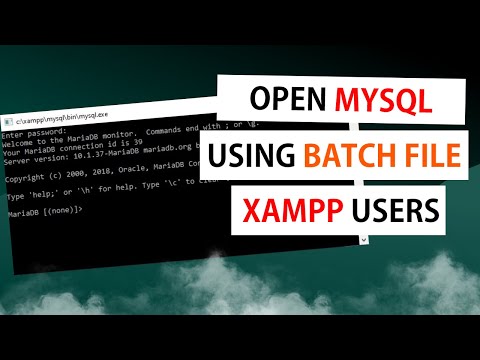
If you’re a developer using XAMPP, you likely find yourself constantly navigating through directories just to access the MySQL command line interface. It can feel repetitive opening the command prompt, typing cd repeatedly, and entering the same connection string every single time.
In this tutorial, we look at a simple life hack to eliminate that friction by creating a custom batch file that connects you to your database with a single click.
The Problem with the Manual Route
Typically, accessing the MySQL/MariaDB terminal requires a tedious manual path:
- Opening the Command Prompt (cmd).
- Navigating to your root directory.
- Stepping into the xampp folder.
- Navigating into mysql, then into bin.
Finally, executing the connection command: mysql -u root -p -h 127.0.0.1.
If you do this daily, you are wasting valuable time. Fortunately, you can automate this entire sequence.
Automating with a Batch File
By creating a simple .bat file, you can script all those navigation steps into one execution. Here is how to set it up:
- Open Notepad: Press Win + R on your keyboard, type notepad, and hit Enter.
- Write the Script: Copy and paste the following line into your text file: start C:\xampp\mysql\bin\mysql -u root -p -h 127.0.0.1 (Note: Adjust the path if your XAMPP installation is in a different location.)
- Save as a Batch File: * Go to File > Save As.
- Name it something recognizable, like connect_mysql.bat.
- Crucial: Change the “Save as type” dropdown to “All Files” to ensure it doesn’t save as a .txt file
Why This Works
The start command effectively launches the MySQL client directly from the bin directory, bypassing the need for you to manually change directories (cd) in the terminal. When you double-click your new .bat file, it opens the terminal and immediately prompts for your password, connecting you to your MariaDB interface instantly.
Once connected, you can verify it by running standard commands like show databases; or show tables; to jump straight into your workflow.
Watch the Full Guide
For a step-by-step walkthrough, including how to verify your connection and navigate your databases, check out the full video here:
Advertisement
Recent Posts
- Mastering Time: A Practical Guide to Building a Digital Clock with JavaScript
- How to Easily Add Live Crypto Prices to Your Website
- CSS grid vs flexbox solved: how to choose the right layout system
- How to create sticky headers and footers that work on all screens
- How to build responsive layouts using flexbox step by step