
How to Easily Add Live Crypto Prices to Your Website
 remove_red_eye
135 Views
remove_red_eye
135 Views
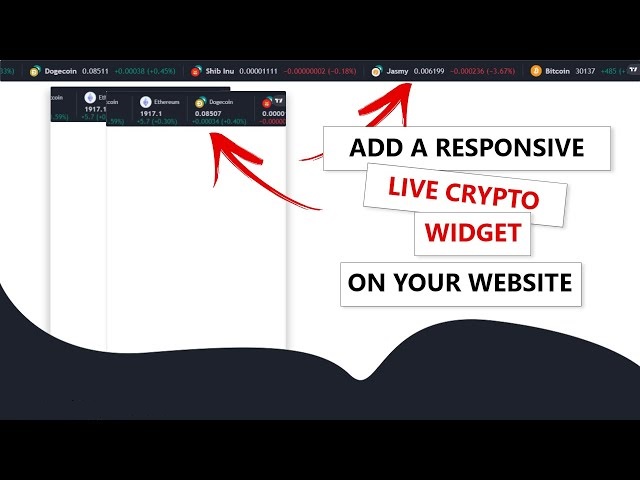
If you are building a financial dashboard, a personal portfolio, or simply want to display real-time market data on your site, you have likely run into the challenge of finding a reliable data feed. Building a backend to scrape or pull API data and keep it updated in real-time is no small task.
Fortunately, there is a much faster, cleaner way to get live crypto prices on your website without managing complex server-side logic. The secret is leveraging pre-built widget libraries, such as the one offered by TradingView.
Why Use Widgets for Market Data?
As developers, we often want to build everything from scratch to have total control. However, financial data widgets offer three major benefits:
- Reliability: You don’t have to worry about API rate limits, downtime, or maintaining WebSocket connections.
- Speed: Implementation takes minutes, not hours.
- Customization: Most reputable providers allow you to style the widget to match your site’s branding.
Tutorial
Step-by-Step: Adding the Widget
The process is straightforward. You essentially inject a pre-configured script into your HTML markup.
1. Configure Your Widget
Head over to the TradingView Ticker Tape Widget page. Here, you can select the assets you want to track—whether that’s Bitcoin, Ethereum, or specific Forex indices.
Once you have selected your assets, the site generates an embeddable script. Copy this script.
2. Embed the Code
Paste the script tag directly into your index.html file where you want the ticker to appear.
<div class=”tradingview-widget-container”>
<script type=”text/javascript” src=”https://s3.tradingview.com/external-embedding/…”>
// Configuration object here
</script>
</div>
3. Customizing the Look and Feel
This is where you can make the widget truly feel like part of your application. You might find that the default styling clashes with your layout, or you might want to hide the provider’s branding.
Removing the Watermark
If you want a cleaner look, you can hide the “Markets by TradingView” copyright element using CSS. You can target the specific class and set it to display: none; in your style sheet or an internal style tag:
.tradingview-widget-container {
height: auto !important;
}
A Few Practical Tips
- Match Your Theme: Don’t forget to set the colorTheme property in the widget configuration object to “dark” if your site uses a dark mode. It’s a small detail, but it prevents the “flash” of a bright white widget against a dark background.
- Transparency: If you have a background image or a gradient behind the widget, set isTransparent: true in your configuration to let the underlying design show through.
- Keep it Simple: While it is tempting to track dozens of assets, a cluttered ticker can overwhelm your users. Choose the 5–10 assets most relevant to your audience to maintain a clean UI.
So adding real-time financial data doesn’t have to be a headache. By using embeddable widgets and applying a bit of CSS for custom positioning and cleanup, you can integrate professional-grade price tracking into your project quickly.
For more details on implementing this, check out the full tutorial here: https://youtu.be/b6V9_JgX3Do
Advertisement
Recent Posts
- Mastering Time: A Practical Guide to Building a Digital Clock with JavaScript
- How to Easily Add Live Crypto Prices to Your Website
- CSS grid vs flexbox solved: how to choose the right layout system
- How to create sticky headers and footers that work on all screens
- How to build responsive layouts using flexbox step by step