
Convert Numbers to Words and Back – Step-by-Step Guide
 remove_red_eye
132 Views
remove_red_eye
132 Views
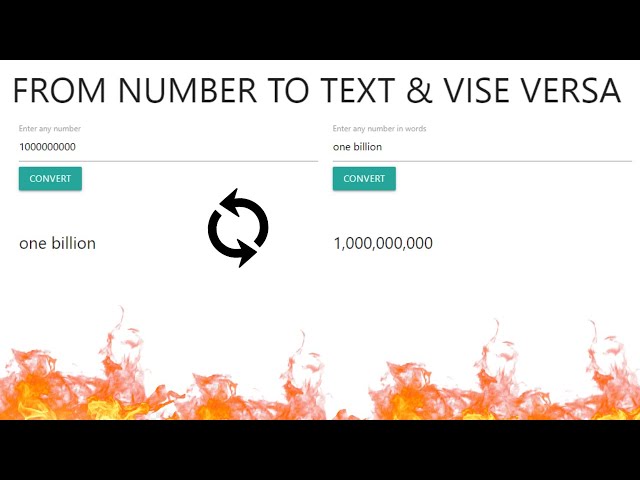
In today’s digital world, it’s common to deal with numbers in different formats. Sometimes we need to display a number as words (e.g., 1234 becomes “one thousand two hundred thirty-four”) or convert a number written in words back into its numeric format (e.g., “three hundred” becomes 300). This functionality is particularly useful in various applications such as forms, financial systems, and even in programming challenges.
In this step-by-step guide, we’ll walk through how to easily implement a system for converting numbers to words and parsing number strings back into numbers using HTML, JavaScript, and the numbered.js library. By the end of this article, you will have a solid understanding of how to apply this technique in your projects.
Tools We’ll Use
- HTML – To create the structure of the webpage.
- JavaScript – To handle the number-to-word conversion and parsing logic.
- Materialize – A CSS framework to style our input forms and output areas.
- Numbered.js – A lightweight library for easily converting numbers to words and parsing text into numbers
The Project Overview
- In this project, we’ll build a simple interface where users can:
- Enter a number and see it converted into words.
- Enter words that represent a number and see it converted back to the numeric format.
Let’s dive into the implementation.
Tutorial
Step 1: Setting Up the HTML Structure
Here’s the basic HTML code to create the user interface for our project:
<!DOCTYPE html>
<html lang=”en”>
<head>
<meta charset=”UTF-8″>
<meta http-equiv=”X-UA-Compatible” content=”IE=edge”>
<meta name=”viewport” content=”width=device-width, initial-scale=1.0″>
<title>Numbered Library</title>
<!– Compiled and minified CSS –>
<link rel=”stylesheet” href=”https://cdnjs.cloudflare.com/ajax/libs/materialize/1.0.0/css/materialize.min.css”>
<!– Compiled and minified JavaScript –>
<script src=”https://cdnjs.cloudflare.com/ajax/libs/materialize/1.0.0/js/materialize.min.js”></script>
</head>
<body>
<div class=”container”>
<div class=”row”>
<h2>FROM NUMBER TO TEXT & VISE VERSA</h2>
<form class=”col s12″>
<div class=”row”>
<div class=”input-field col s6″>
<input id=”number” type=”number”>
<label for=”number”>Enter any number</label>
<input type=”submit” value=”Convert” class=”btn” id=”btn1″>
</div>
<div class=”input-field col s6″>
<input id=”number_text” type=”text” autocomplete=”off”>
<label for=”number_text”>Enter any number in words</label>
<input type=”submit” value=”Convert” class=”btn” id=”btn2″>
</div>
</div>
</form>
<div class=”col s12″>
<div class=”row”>
<div class=”col s6″ id=”output1″></div>
<div class=”col s6″ id=”output2″></div>
</div>
</div>
</div>
</div>
<script src=”https://cdnjs.cloudflare.com/ajax/libs/numbered/1.1.0/index.min.js”></script>
<script src=”script.js”></script>
</body>
</html>
This HTML structure contains:
- Two input fields: one for entering numbers and the other for entering numbers as words.
- A submit button for each input field to trigger the conversion.
- Two output sections to display the converted results.
Step 2: Handling the Conversion Logic with JavaScript
Next, let’s look at the JavaScript code that handles the conversion of numbers to words and vice versa.
const numberField = document.querySelector(‘#number’);
const button1 = document.querySelector(‘#btn1’);
const resDiv1 = document.querySelector(‘#output1’);
button1.addEventListener(‘click’, (e) => {
e.preventDefault();
const numValue = numberField.value;
resDiv1.innerHTML = `<p class=”flow-text”>${numbered.stringify(numValue)}</p>`;
})
//Text number field
const TextnumberField = document.querySelector(‘#number_text’);
const button2 = document.querySelector(‘#btn2’);
const resDiv2 = document.querySelector(‘#output2’);
button2.addEventListener(‘click’, (e) => {
e.preventDefault();
const textNumValue = TextnumberField.value;
const formatedNum = new Intl.NumberFormat().format(numbered.parse(textNumValue))
resDiv2.innerHTML = `<p class=”flow-text”>${formatedNum}</p>`;
})
What’s Happening in the Code?
Number to Words Conversion:
- The numberField captures the number input by the user.
- When the user clicks the “Convert” button (button1), the value is passed to the numbered.stringify() function, which converts the number into words.
- The result is displayed inside the output1 div.
Words to Number Conversion:
- The TextnumberField captures the input in words.
- When the user clicks the second “Convert” button (button2), the text is parsed back into a number using numbered.parse().
- The number is formatted with commas for thousands using Intl.NumberFormat() and then displayed inside output2.
Step 3: Styling the Interface
We used Materialize CSS framework to style the form and buttons. Materialize provides simple, modern components that are easy to integrate into your web pages. The input fields, buttons, and output sections are styled to make the interface clean and responsive.
Step 4: Understanding the Libraries
- Numbered.js is a JavaScript library used to convert numbers into their word equivalents and parse worded numbers back into numeric format. This library simplifies the task of converting numbers to words and vice versa. It handles complex rules such as dealing with commas, hyphens, and special cases (like “and” in English number formats).
- Materialize helps with responsive design, making sure that our interface looks good on all screen sizes.
Step 5: Running the Application
To run the application:
- Copy the HTML and JavaScript code into two separate files (index.html and script.js).
- Open index.html in your browser.
- Enter a number to convert it to words, or enter a number in words to convert it back to a numeric format.
Github Repo: Source code
Conclusion
This step-by-step guide demonstrated how to implement a simple number-to-word and word-to-number converter using JavaScript, Materialize CSS, and the numbered.js library. By understanding this approach, you can now build your own number conversion systems in web applications and other projects where such functionality is needed.
Happy coding!
Advertisement
Recent Posts
- Mastering Time: A Practical Guide to Building a Digital Clock with JavaScript
- How to Easily Add Live Crypto Prices to Your Website
- CSS grid vs flexbox solved: how to choose the right layout system
- How to create sticky headers and footers that work on all screens
- How to build responsive layouts using flexbox step by step