Get Internet Connection Info Using JavaScript
In today’s digital age, knowing your internet connection details such as IP address, geographic location, and even your internet service provider can be helpful in a variety of ways. Whether you’re debugging network issues or building a tool to display user details, fetching such information is relatively easy with JavaScript.
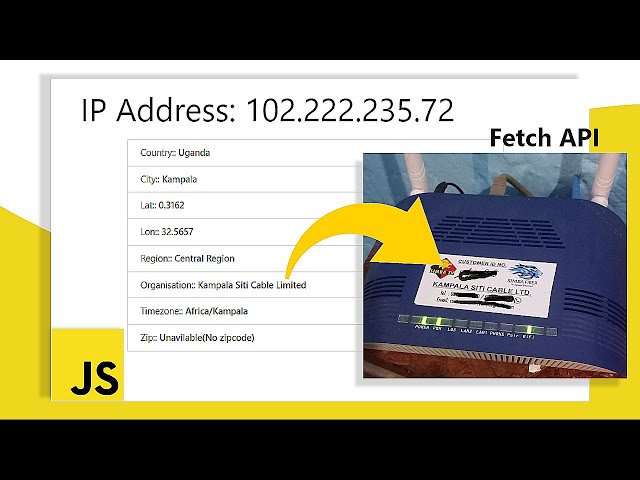
In this blog post, I’ll show you how to get your internet connection information using JavaScript and display it on a simple webpage. This will include the IP address, the country and city of the user, their region, timezone, latitude/longitude, internet organization, and zip code.
Tutorial
Prerequisites
Before we dive into the code, here’s what you’ll need:
- Basic knowledge of HTML, CSS, and JavaScript.
- A working web browser to test the code.
- A text editor (VS Code, Sublime Text, etc.) to edit the HTML and JS files.
What We’ll Cover
- Fetching the user’s public IP address.
- Using the IP address to gather more information like location, region, timezone, and more.
- Displaying this data dynamically on the page.
1. Setting Up Your HTML Structure
Let’s start by setting up a basic HTML page where we’ll display the user’s internet connection information. We’ll use the Materialize CSS framework for styling, though you can use any framework or custom styles you like.
<!DOCTYPE html>
<html lang=”en”>
<head>
<meta charset=”UTF-8″>
<meta http-equiv=”X-UA-Compatible” content=”IE=edge”>
<meta name=”viewport” content=”width=device-width, initial-scale=1.0″>
<title>Inetrnet Info</title>
<link rel=”stylesheet” href=”https://cdnjs.cloudflare.com/ajax/libs/materialize/1.0.0/css/materialize.min.css”>
</head>
<style>
#internet_info {
width: 800px;
max-width: 80%;
margin: 0 auto;
}
</style>
<body>
<div class=”container”>
<h2>IP Address: <span id=”ipValue”></span></h2>
<div id=”internet_info”></div>
</div>
<script src=”https://cdnjs.cloudflare.com/ajax/libs/materialize/1.0.0/js/materialize.min.js”></script>
<script src=”app.js”></script>
</body>
</html>
In this setup:
- We’re using the Materialize CSS framework for a simple and responsive design.
- The #ipValue element will display the user’s public IP address.
- The #internet_info section will display additional information about the user’s connection.
2. Writing the JavaScript Code
Now, we’ll write the JavaScript logic to fetch the user’s IP address and additional internet details.
Fetching the Public IP Address
The first thing we need is the user’s public IP address. We’ll use a free API service (jsonip.com) to fetch this information.
let resDiv = document.querySelector(‘#internet_info’);
let ipElem = document.querySelector(‘#ipValue’);
// Fetch the IP address
getIpaddress();
function getIpaddress() {
fetch(‘https://jsonip.com/’)
.then(res => res.json())
.then(data => {
getInternet_info(data.ip); // Pass the IP to fetch more details
ipElem.innerHTML = data.ip; // Display the IP address
})
.catch(err => {
console.log(`There was an error ${err}`);
});
}
Here:
- We use the fetch method to make an API call to jsonip.com to get the user’s public IP.
- Once we get the IP, we call another function (getInternet_info) to fetch more detailed information based on that IP.
Fetching Detailed Information Using the IP
Next, we use the IP address to fetch additional information like country, city, region, timezone, latitude, longitude, and even the user’s internet service provider (ISP). We can get this information from the ip-api.com API.
function getInternet_info(ip) {
let ipAddress = ip;
let output = “”;
fetch(`http://ip-api.com/json/${ipAddress}`)
.then(res => res.json())
.then(data => {
output += `
<ul class=”collection”>
<li class=”collection-item”>Country:: <strong>${data.country}</strong></li>
<li class=”collection-item”>City:: <strong>${data.city}</strong></li>
<li class=”collection-item”>Region:: <strong>${data.regionName}</strong></li>
<li class=”collection-item”>Timezone:: <strong>${data.timezone}</strong></li>
<li class=”collection-item”>Lat:: <strong>${data.lat}</strong></li>
<li class=”collection-item”>Lon:: <strong>${data.lon}</strong></li>
<li class=”collection-item”>Internet Organisation:: <strong>${data.org}</strong></li>
<li class=”collection-item”>Zip Code:: <strong>${data.zip ? data.zip : ‘Unavailable (no Zip)’}</strong></li>
</ul>
`;
resDiv.innerHTML = output; // Display the fetched info on the page
console.log(data); // Log the full data for debugging
})
.catch(err => {
console.log(`There was an error in the info function:: ${err}`);
});
}
Breakdown of the Data
- Country: The country associated with the IP address.
- City: The city where the IP is located.
- Region: The region (or state) of the user.
- Timezone: The timezone of the IP address.
- Latitude and Longitude: The geographical coordinates of the user.
- Internet Organization: The organization providing the internet service for the given IP.
- Zip Code: The postal code associated with the IP address.
Styling the Data
In the getInternet_info function, we’re using Materialize’s collection list component (<ul class=”collection”>) to display the information in a neat and styled list. You can modify this to suit your design needs.
3. Testing the Code
Once you’ve set up the HTML and JavaScript files, you can open the HTML file in your browser. You should see:
- Your public IP address displayed at the top.
- Below that, a list of detailed internet connection information such as your country, city, region, timezone, latitude, longitude, ISP, and zip code.
If the user is in a location where some information is unavailable (for instance, no zip code), the script will display a placeholder message like “Unavailable (no Zip)”.
Conclusion
In this post, we’ve learned how to fetch and display various pieces of internet connection information using JavaScript. By utilizing the power of external APIs like jsonip.com and ip-api.com, we can gather important details about the user’s connection, and display them dynamically on a webpage.
This can be useful for various applications, such as:
- Customizing content based on the user’s location.
- Debugging network issues.
- Providing users with more information about their internet setup.
You can easily enhance this project further by adding more features, such as tracking IP history or displaying more in-depth geographical details. The possibilities are endless!
account_box Author: KTim
date_range Date: 11th, March 2026
access_time Time: 9:42 am
remove_red_eye Views: 22 Views