Show Preloaders While Waiting for Server Response with FETCH
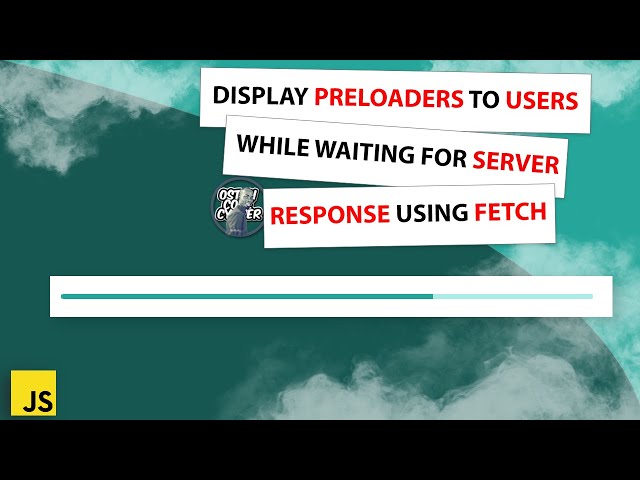
When developing web applications, user experience is a crucial aspect of keeping your visitors happy. One common scenario users face is waiting for content to load from a server. To make this waiting time less frustrating, it’s essential to provide feedback on what’s happening in the background. A preloader (also known as a loading indicator) is a visual element that helps inform users that content is being loaded.
In this blog post, we’ll go through a practical example of how to display a preloader while waiting for server responses, using JavaScript’s fetch API to load content asynchronously. We’ll walk through an HTML page setup, styling for the preloader, and JavaScript code that integrates everything together.
Just incase you don’t want to read alot, here is a tutorial.
The Setup
We will be creating a basic web page that fetches posts from a WordPress site (via REST API) and displays them on the page. While waiting for the posts to load, we’ll show a preloader to inform the user that the content is being fetched.
1. HTML Structure
Our HTML includes the Materialize CSS library for easy styling of the preloader and content layout. Here’s how it’s structured:
<!DOCTYPE html>
<html lang=”en”>
<head>
<meta charset=”UTF-8″>
<meta http-equiv=”X-UA-Compatible” content=”IE=edge”>
<meta name=”viewport” content=”width=device-width, initial-scale=1.0″>
<link rel=”stylesheet” href=”https://cdnjs.cloudflare.com/ajax/libs/materialize/1.0.0/css/materialize.min.css”>
<title>Fetch Preloader</title>
<link rel=”stylesheet” href=”style.css”>
</head>
<body>
<div class=”container”>
<!– Preloader –>
<div id=”loader”>
<div class=”progress”>
<div class=”indeterminate”></div>
</div>
</div>
<!– Content to be loaded –>
<div id=”app”></div>
</div>
<script src=”https://cdnjs.cloudflare.com/ajax/libs/materialize/1.0.0/js/materialize.min.js”></script>
<script src=”app.js”></script>
</body>
</html>
Here, we’ve created a div with the ID loader, which holds the preloader animation. Another div with the ID app is where our dynamically fetched posts will be displayed.
2. Styling the Preloader and Layout
We’ll need some basic CSS to handle the layout and show/hide the preloader. Here’s the style.css file:
#app {
display: grid;
align-items: center;
gap: 40px;
grid-template-columns: repeat(auto-fit, minmax(240px, 1fr));
}
.post img {
width: 100%;
object-fit: cover;
}
#loader {
display: none;
}
#loader.show {
display: block;
}- The #app container is set to a responsive grid layout, making the posts display in multiple columns depending on the screen size.
- The #loader is initially hidden (display: none;), but we will toggle the visibility with JavaScript by adding the show class.
- The .post img ensures that images inside posts scale well and maintain an aspect ratio.
3. JavaScript for Fetch and Preloader Logic
The core of this implementation lies in our JavaScript code, which fetches data from the server, handles the preloader, and renders the posts dynamically.
Here’s the app.js file:
document.addEventListener(“DOMContentLoaded”, function () {
const appDiv = document.getElementById(‘app’);
const loaderDiv = document.getElementById(‘loader’);
function showLoader() {
loaderDiv.classList.add(‘show’);
}
function hideLoader() {
loaderDiv.classList.remove(‘show’);
}
function getPosts() {
showLoader();
fetch(‘https://ugandafilmtalks.com/wp-json/wp/v2/posts?page=1’)
.then(res => {
return res.json();
})
.then(data => {
hideLoader();
generateHTML(data);
})
.catch(err => {
console.log(‘There was an error while processing your request: ‘ + err);
});
}
function generateHTML(posts) {
let output = ”;
posts.forEach(post => {
output += `
<div class=”post”>
<h5 class=”truncate” title=”${post.title.rendered}”>
<a href=”${post.link}” target=”_blank”>${post.title.rendered}</a>
</h5>
<img src=”https://picsum.photos/320/200″/>
</div>
`;
});
appDiv.innerHTML = output;
}
// Fetch posts when the page loads
window.onload = () => {
getPosts();
};
});
How It Works:
Fetching Data:
- The getPosts function fetches a list of posts from a WordPress site using the fetch API. The API URL points to the REST endpoint of the site.
- showLoader() is called before the request, making the preloader visible.
- hideLoader() is invoked after the response is received, hiding the preloader.
Displaying Data:
- The generateHTML function processes the fetched data (which contains post details like titles and links) and dynamically creates HTML for each post.
- This HTML is inserted into the #app div.
Error Handling:
- If the fetch request fails, an error message is logged to the console.
Github Repo: Source code
Conclusion
With this setup, users will see a preloader (a simple animated progress bar) while the data is being fetched. This provides a smoother experience, indicating that content is loading in the background and users don’t just see a blank screen. Once the content is ready, the preloader disappears, and the posts are displayed.
This pattern can be easily adapted for more complex use cases, such as loading data for other resources, like images or user comments. The idea is simple give users a visual cue that something is happening while they wait!
By using fetch with a preloader, you improve the user experience by reducing uncertainty and increasing perceived performance.
account_box Author: KTim
date_range Date: 12th, March 2026
access_time Time: 6:05 am
remove_red_eye Views: 35 Views